
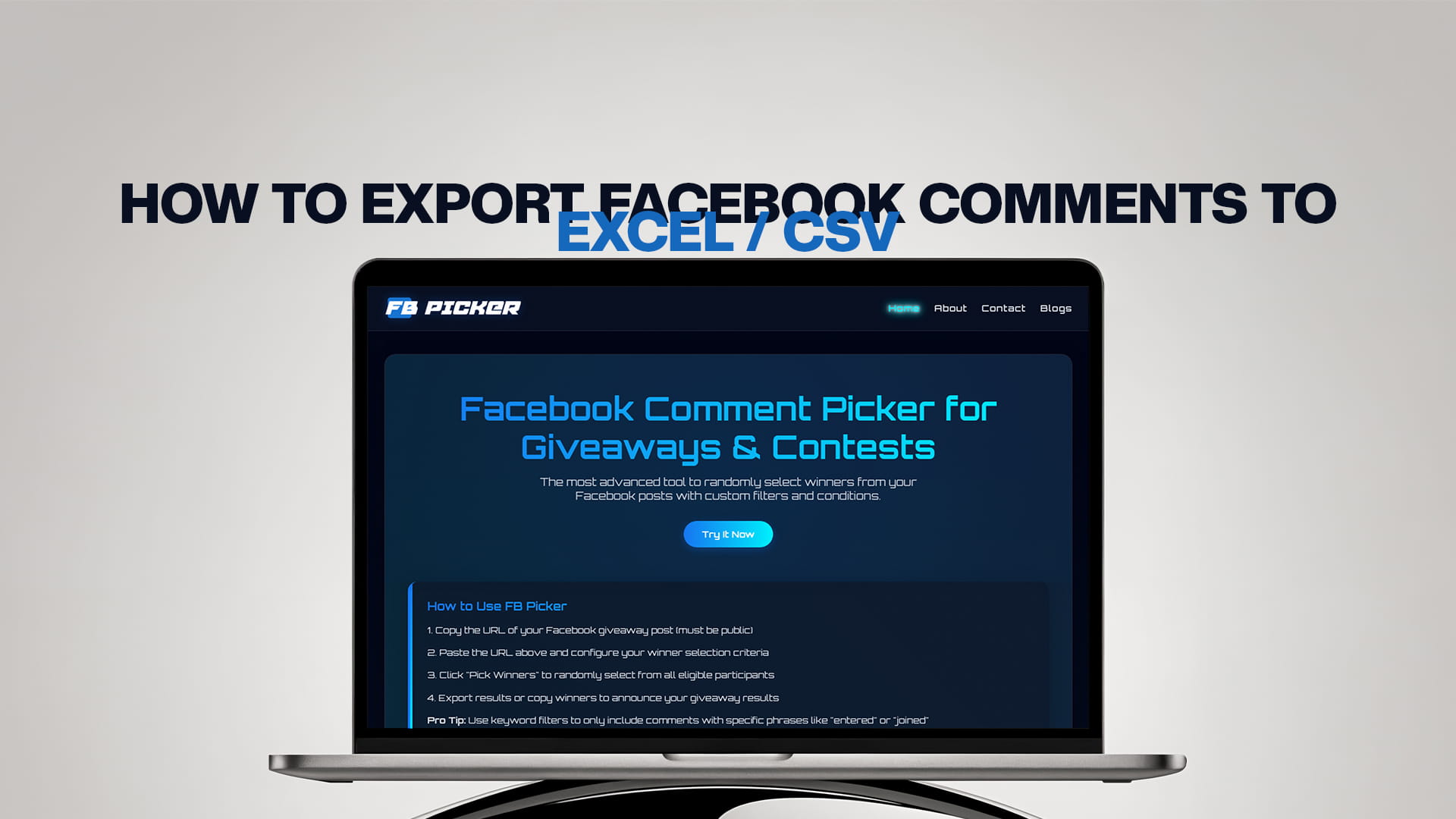
How to Export Facebook Comments to Excel / CSV
Facebook comments are one of the richest sources of data a page owner has, but they're trapped inside the platform in a format you can't sort, filter, or analyze. The moment you want to count entries for a giveaway, measure engagement on a campaign, or save a record of who said what, you hit the same wall: there's no built-in "download all comments" button. The fix is to export those comments to a spreadsheet, where every comment becomes a clean, sortable row of data.
This guide walks through exactly how to export Facebook comments to Excel or CSV, the methods available, the data you can pull, the limits you need to know about, and how to turn a finished export into a fair giveaway draw. Whether you're managing one post or hundreds, exporting your comments takes the guesswork out of analysis and turns a messy comment thread into something you can actually work with.
Why Export Your Facebook Comments?
Before the how, it's worth being clear on the why, because the use case shapes which method and which fields you'll want.
The most common reason is running a giveaway. Exporting every comment gives you a complete entry list you can verify, filter, and draw from, rather than scrolling endlessly and hoping you didn't miss anyone. Many organizers export first and then run a random comment picker for giveaways against the spreadsheet to produce a result they can prove was fair.
Beyond contests, exporting comments unlocks several practical workflows. Brand and engagement reporting becomes simple when you can pull every comment under your monthly posts to count engaged followers and identify your top contributors. Customer feedback mining is another big one: grab the comments under a product launch or a pricing-change post and bucket them by sentiment to see how people really reacted. Marketers also use exports for crisis monitoring, catching the loudest threads early during a sensitive period, and for compliance archiving, since sponsored-post regulations in some regions require keeping records of promotional content and its responses for a set number of years.
In short, a comment export turns a fleeting, unsortable thread into a permanent, analyzable asset.
What Data Can You Export?
A good export tool doesn't just grab the comment text. Depending on the tool, a typical export to Excel or CSV includes the comment ID, the full comment text, the username and user ID of the commenter, the like count on each comment, the number of replies, the permalink URL to the individual comment, and the date and time it was posted. Some tools also include reaction breakdowns (love, haha, wow, sad, angry) when Facebook exposes them, on top of the total like count.
That structured data is what makes a spreadsheet so powerful. Once your comments are in columns, you can sort by date, filter by keyword, count entries per user to spot duplicates, or rank commenters by engagement, none of which is possible inside the Facebook interface itself.
Method 1: Manual Copy and Paste
The zero-cost, zero-tools approach is to copy comments by hand into a spreadsheet. Open your post, scroll through the comments, and copy each one into a new row in Excel or Google Sheets. For a tiny post with a dozen entries, this works fine.
The problem is that it doesn't scale and it isn't reliable. Comments load in batches as you scroll, so it's easy to miss replies buried in threads or "more comments" that never fully loaded. You'll also lose the structured data, the timestamps, like counts, and user IDs, unless you copy each field separately, which is impossibly tedious. For anything beyond a handful of comments, manual copying produces an incomplete, error-prone list that you can't fully trust. Treat it as a last resort, not a real method.
Method 2: Facebook's Native Tools
Facebook and Meta Business Suite offer some built-in insights and data downloads, but they're built for high-level analytics rather than comment-level export. You can see engagement totals and some post performance data, but there's no native, one-click way to download every individual comment from a post into a clean spreadsheet with usernames and timestamps. If you only need aggregate numbers, the native tools may be enough. If you need the actual comments as rows of data, you'll want a dedicated export tool.
Method 3: Use a Dedicated Export Tool (Recommended)
The fastest, most reliable way to export Facebook comments to Excel or CSV is a purpose-built export tool. These tools connect to your Facebook page, pull every comment from the post you choose, and hand you a clean spreadsheet in seconds. Here's the typical workflow:
1. Choose your tool and connect your page. Most export tools require you to log in with the Facebook account that administers the page and grant read permissions so the tool can fetch your posts and their comments. Read-only access means the tool can see your content but can't post, edit, or delete anything on your behalf.
2. Select the post, video, Reel, or ad. Pick the specific post you want to export. Good tools support not just text posts but also videos, Reels, and Facebook ads, so you're not limited to one content type.
3. Apply filters before exporting. This is where a quality tool saves you time. You can often filter comments by a minimum or exact number of likes, restrict to a specific date range, sort by recency or popularity, and choose which fields to include in the final file.
4. Export to Excel or CSV. Generate the file and download it. CSV is universal and opens in any spreadsheet program; XLSX preserves formatting and is ideal if you'll do heavier analysis in Excel. Some tools also offer JSON for developers.
5. Clean and analyze. Open the file, remove any columns you don't need, and use your spreadsheet's sort and filter functions to do whatever the export was for, counting entries, tallying engagement, or isolating comments that contain a keyword.
A quick but important tip on URLs: when you copy a Facebook link to paste into a tool, use the final, redirected address from your browser's address bar rather than the initial link. A link that starts on one Facebook subdomain often redirects to the canonical www.facebook.com version, and the redirected URL is the one tools read reliably.
The Big Limitation: Pages, Not Profiles or Groups
Here's the single most important thing to understand before you start. Almost every export tool works only with Facebook business pages. They generally cannot download comments from personal Facebook profiles or from Facebook groups, because Meta's API simply doesn't grant that access to third-party tools.
Private groups are especially restricted: their posts aren't reachable through public URLs, so a public exporter can't read them at all. Public group posts are sometimes supported, but private groups are not. If your comments live in a private group, you'll need to handle them manually, which we'll touch on below. For pages, though, exporting is straightforward and fully supported.
This is also why you'll see most tools state plainly that they support page posts, videos, Reels, and ads, but not profiles or groups. It's not an arbitrary restriction; it's a direct reflection of what Meta's platform permits.
Free vs. Paid Exports
Most export tools offer a free tier with caps. A common free arrangement is a small number of exports per day or month with a low comment ceiling per post, which is fine for occasional, small jobs. Once you regularly export larger posts, or need thousands of comments at once, you'll bump into those limits and a paid plan becomes worthwhile, unlocking unlimited or much larger exports, more fields, and scheduling. Match the plan to your real usage; if you export once in a while from modest posts, the free tier may be all you ever need.
Turning Your Export Into a Fair Giveaway Draw
If the reason you exported was to run a contest, the export is only half the job. The other half is choosing a winner from that list in a way your audience trusts. This is where FB Picker, the most advanced tool for randomly selecting winners from your Facebook posts, comes in. You can run your draw directly from a live post, or, for comments you've already exported, use the spreadsheet as your verified entry list.
FB Picker uses a cryptographically secure random algorithm, so it selects winners randomly in a way that can't be manipulated, and it lets you apply the same kinds of filters you'd use in a spreadsheet, removing duplicate commenters, requiring a keyword, or counting only comments that tag a friend. If your giveaway has tiered prizes or you simply want backups in case a winner doesn't claim, you can pick multiple winners in a single pass. Because the draw happens on screen, you can record it and post the clip as proof, which is far more convincing than a bare announcement.
Tips for a Clean, Useful Export
A few habits make every export better. Export soon after your contest or campaign closes, so late edits and deletions don't change your dataset after the fact. Always keep the original, unfiltered file as a master copy and apply your filters to a duplicate, so you never lose data you might need later. If you're exporting for record-keeping or compliance, save a screenshot of the post alongside the spreadsheet so the export has context. And if you run regular giveaways, standardize your process: same tool, same fields, same naming convention, so your archives stay consistent and easy to search.
Bringing It All Together
Exporting Facebook comments to Excel or CSV transforms an unsortable thread into structured, analyzable data you can use for giveaways, reporting, feedback, and record-keeping. Manual copying works only for the smallest posts; for anything real, a dedicated export tool that pulls comment text, usernames, timestamps, and like counts is the way to go, just remember it works for pages, not personal profiles or private groups. And if your export is feeding a contest, finish the job with the best free Facebook comment picker so the winner you announce is one your whole audience can trust.
Common Questions Asked by Users
Can I export Facebook comments for free? Yes. Most export tools offer a free tier, though it usually caps the number of exports and comments per post. For occasional, small exports, the free tier is often enough; heavy or large exports typically need a paid plan.
What format should I export to, CSV or Excel? CSV is universal and opens in any spreadsheet app, making it the safest default. XLSX (Excel) preserves formatting and is better if you'll do heavier analysis. Some tools also offer JSON, which is mainly useful for developers.
Can I export comments from a private Facebook group? No. Private group posts aren't accessible through public URLs, so export tools can't read them. Public group posts are sometimes supported, but private groups require a manual approach. Most tools work only with Facebook business pages.
What data is included in a comment export? Typically the comment text, the commenter's username and user ID, the like count, the reply count, a permalink to each comment, and the date and time posted. Some tools also include reaction breakdowns.
Do I need to give the tool my Facebook password? No. Reputable tools use Facebook's official login and request read-only permissions, which let them fetch your posts and comments without the ability to post, edit, or delete anything on your account.
Can I pick a giveaway winner from my exported comments? Yes. Once you have your entry list, run a comment picker like FB Picker against your post or your export to select a verifiably random winner, with filters for duplicates and keywords.